Android Display Integration for Embedded Devices
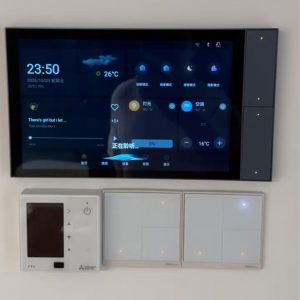
An Android display in an embedded product is the screen Android uses to show the device interface. It might be a built-in touchscreen on a machine controller or a second screen facing customers at a checkout. The board and firmware determine which displays Android can use, while the application determines what to show on each available screen.
This collection is for hardware engineers, Android developers, and product teams building kiosks, control panels, and retail terminals. The guide below explains how to identify the screens Android exposes and choose between Presentation and a separate Activity when two screens need different content.
Decide What Each Screen Needs to Do
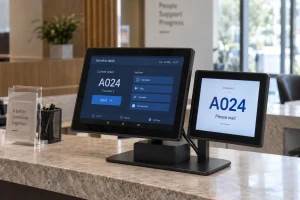
Write down who uses each screen, what they need to see, and whether they need to touch it. At a checkout, the operator may need access to transaction controls while the customer sees only the total and payment status. An identical image on both screens would expose the operator interface. Separate content lets each screen serve its own audience, provided the system exposes an independent display the app can target.
For an Android display project, check the exact Android SBC model and firmware build before committing to the enclosure or cable layout. Two physical connectors tell you where screens can plug in. To establish what the product can do, confirm which outputs work at the same time, the supported resolution for each, and whether Android exposes them as separate displays. Verify that combination with the panels and cables you intend to ship.
Check the Panel and Touch Input Separately
For a built-in screen, compare the panel interface, connector pinout, power requirements, and timing with the board documentation. Ask whether the board support package (BSP) already supports the exact panel. If a prototype uses an HDMI monitor but the finished product will use an internal panel, repeat the display checks with the internal panel and production firmware before approving the design.
On a custom embedded HMI with two touchscreens, confirm where touches go as well as where the image appears. Try a test button near each corner on both screens and check that only the intended interface responds. Repeat after changing the supported screen orientation. A correct image with touch events arriving on the wrong screen points to an input mapping problem worth investigating in the system configuration.
Test What Users See When a Screen Is Unavailable
Specify what should happen when a secondary screen is missing at startup or becomes available later. A checkout should keep the operator controls usable while the customer screen is unavailable. When that screen returns, confirm that it shows the current transaction status immediately. At the end of a sale, check that the customer view clears before the next transaction begins.
Run those checks with the intended Android display configuration after a cold boot, an app restart, and wake from sleep if the product supports it. Test live disconnection only on interfaces designed for it. Record the board model, firmware build, panel models, and output combination with the results so the team can repeat the same checks after a firmware update or panel substitution.