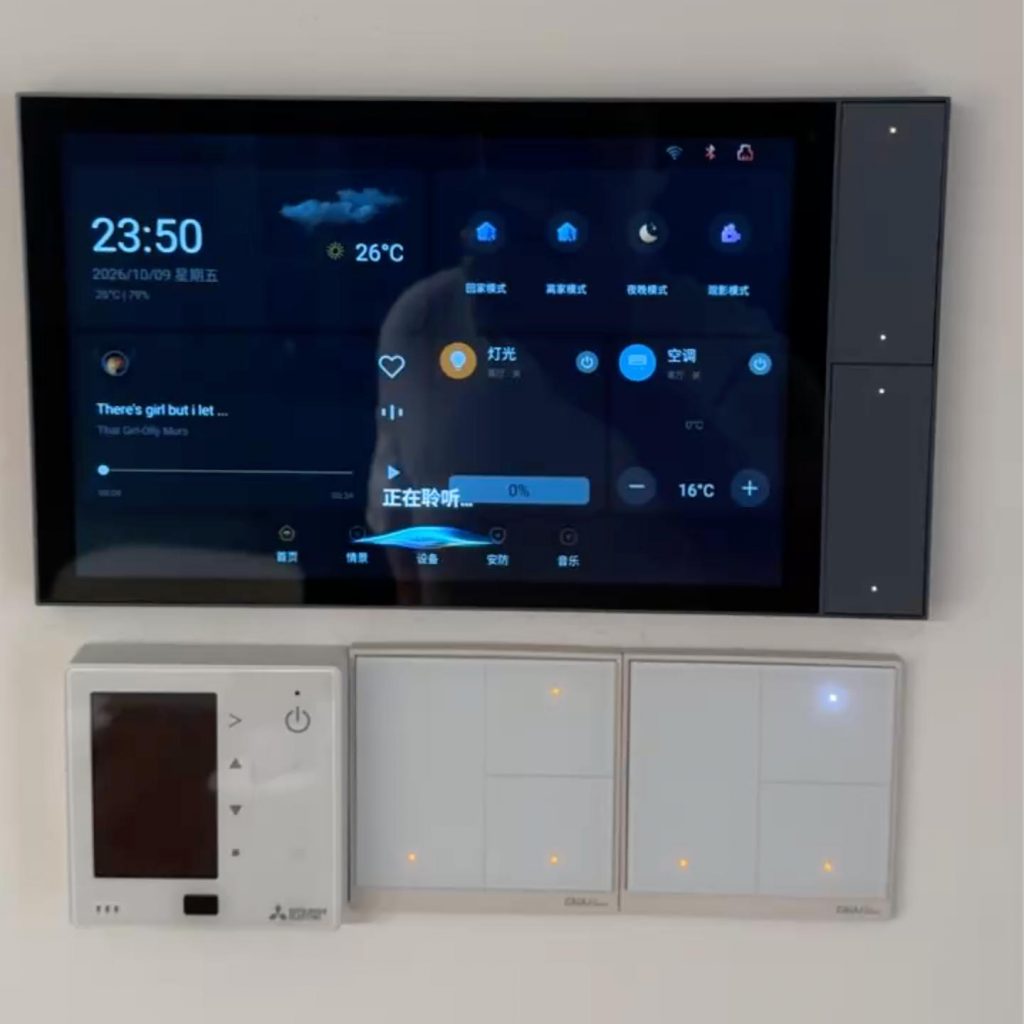
Android launcher vs. kiosk mode comes down to two requirements: where users start and what they can access. A launcher provides the Home interface. A kiosk configuration restricts the device to its intended applications and permitted system functions. An embedded product may need either or both.
Suppose a public check-in terminal already opens its business app as Home. During evaluation, a tester follows a link that opens a browser. The Home configuration may be working correctly; it simply does not define which other applications are permitted. That requires a separate policy decision.
Android Launcher vs. Kiosk Mode: Interface and Access
A custom Android launcher can present a control dashboard or a short list of tools. It determines the Home destination and the navigation offered there. Removing an icon from that screen does not, by itself, prevent the corresponding application from opening through another route.
If the requirement is to replace the standard desktop, Rocktech’s guide to making an app the device Home screen covers that configuration. First decide whether operators merely need a simpler starting point or whether leaving the approved workflow must be prevented.
Android kiosk mode describes a restricted operating setup rather than one universal setting. Lock task mode is an Android mechanism for keeping users within an allowlisted set of applications. A Device Policy Controller (DPC), provisioned with the required management authority, configures that list. Installing a launcher does not automatically give it device-owner authority.
Hiding the navigation bars does not establish that an app is locked down. In immersive mode, a gesture may bring the bars back. During evaluation, try the gestures and physical buttons available on the finished device, and record which screens they open. A full-screen appearance alone is not a useful acceptance criterion.
Choose Around the Operator’s Job
If you are comparing Android launcher vs. kiosk mode, start with the work each user must do. A shift worker may need to switch between a scanner app and a stock lookup tool, while a visitor may need only the check-in screen. List whether each user can open external links or change Wi-Fi settings before deciding what to restrict.
The following scenarios are design examples, not customer case studies. Each proposed setup still needs validation on the intended firmware.
| Device scenario | Operator requirement | Setup to evaluate |
|---|---|---|
| Supervised equipment panel | Reach controls quickly; authorized staff may use other functions. | A purpose-built Home interface, with restrictions based on the consequences of incorrect operation. |
| Public check-in terminal | Complete check-in without browsing unrelated applications or settings. | A business app in lock task mode plus appropriate device policies; a separate launcher is optional. |
| Warehouse workstation | Switch between several approved applications. | An allowlisted app set with a controlled Home interface or another deliberate navigation path. |
| Development sample | Inspect logs, change settings, and test peripherals. | Accessible development tools, followed by a separate check of the production restrictions. |
For a multi-app setup, check the complete workflow rather than counting visible icons. An inventory application might hand a document to a viewer. If that viewer is excluded from the allowed set, the restriction can interrupt legitimate work. If it is included, inspect its links and menus too.
On Android 9.0 and later, a DPC can configure selected system UI features during lock task mode. A Home button can therefore be part of the design, provided the default Home app is also allowlisted. Keeping a custom Android launcher alongside the restrictions gives workers a route between approved tools.
Decide How Technicians Will Maintain the Device
On dedicated Android devices, an operator and a technician should not necessarily have the same access. Consider a terminal moved to a site with different network credentials. Blocking Settings may meet the public-use requirement, but somebody still needs an authorized way to restore connectivity.
Decide which settings technicians can change and how they prove they are authorized. A hidden gesture may open the service screen, but the gesture alone should not grant access. If maintenance temporarily removes a restriction, specify when it returns. Also decide what happens if the technician leaves the session open or the device restarts halfway through.
Include these exercises in the acceptance procedure:
- Restore network access while the remote management connection is unavailable.
- Enter the approved recovery path when the business app cannot open.
- Restart during a maintenance session and check which permissions remain active.
- Install an application update and repeat the allowed and blocked navigation checks.
When assessing Android launcher vs. kiosk mode, include a network outage in the maintenance test. Can an authorized technician change the connection settings without resetting the device? If the only service route depends on the failed connection, specify another way to reach the required settings before deployment.
Confirm the Management Path on the Target Board
Android version alone is not enough to specify Android kiosk mode. Confirm how the selected firmware provisions management authority, applies policies, and restores the intended operating state after restart. Treat safe boot, factory reset, overlays, and physical service access as separate requirements to review, not automatic consequences of selecting Home.
For dedicated Android devices using a customized Android Open Source Project (AOSP) build, ask which management agent and enrollment method the firmware supports. Identify any Google services required by the chosen management software and confirm their availability on that image. Test enrollment on the board you intend to ship.
Rocktech’s Android embedded board services include Board Support Package (BSP) development and Android Framework customization. Share the approved-app list and maintenance procedure when discussing a board project. Agree on who supplies the management agent, who configures the restrictions, and who maintains them after deployment. Confirm that scope for the selected board and firmware.
Frequently Asked Questions
Can an existing app run in kiosk mode without becoming a launcher?
Yes. The application does not need to handle Home. On Android 9.0 or later, an authorized DPC can launch another app’s activity into lock task mode after allowlisting its package. On earlier supported versions, the application must support entering lock task mode itself. Test any dependent applications as part of the same workflow.
Is screen pinning the same as lock task mode?
No. Screen pinning is a user-exitable mode, subject to the device’s unpinning and authentication settings. Calling startLockTask() without the package being allowlisted can request pinning instead of managed locking. Verify the actual mode during testing; similar-looking full-screen behavior does not establish that a kiosk restriction is active.
Does a kiosk deployment require an MDM platform?
No. A commercial Mobile Device Management (MDM) platform is one option. An organization can also develop its own DPC and supporting management process. That choice brings responsibility for provisioning, policy changes, updates, and recovery. Evaluate available engineering support and the selected firmware’s capabilities before committing to either approach.
To resolve Android launcher vs. kiosk mode for your product, send Rocktech the intended users, approved applications, allowed settings, Android version, and maintenance procedure. Include any required management platform. Those details establish which interface changes and system integration work the board project needs before its production configuration is agreed.