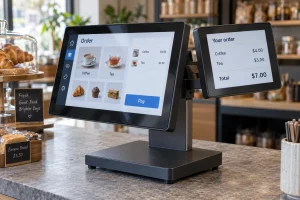
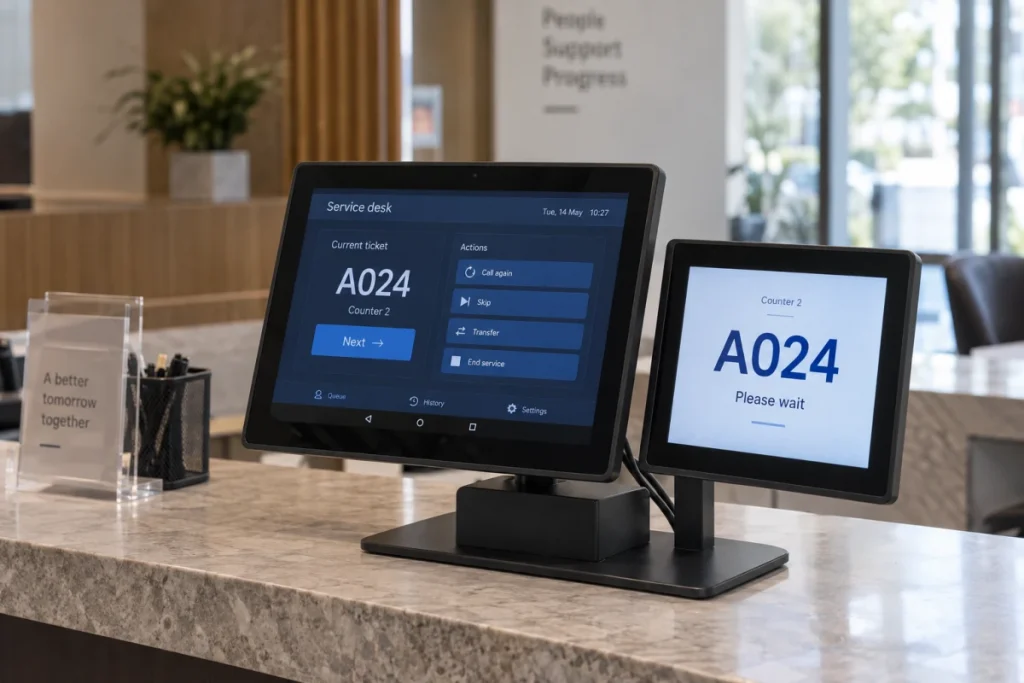
Android multi display support lets an application work with a primary screen and additional displays exposed by the system. This guide focuses on a two-screen embedded terminal: an operator interface on one screen and separate customer content on the other. The application can use Presentation or launch a separate Activity on the secondary display, depending on what the device supports.
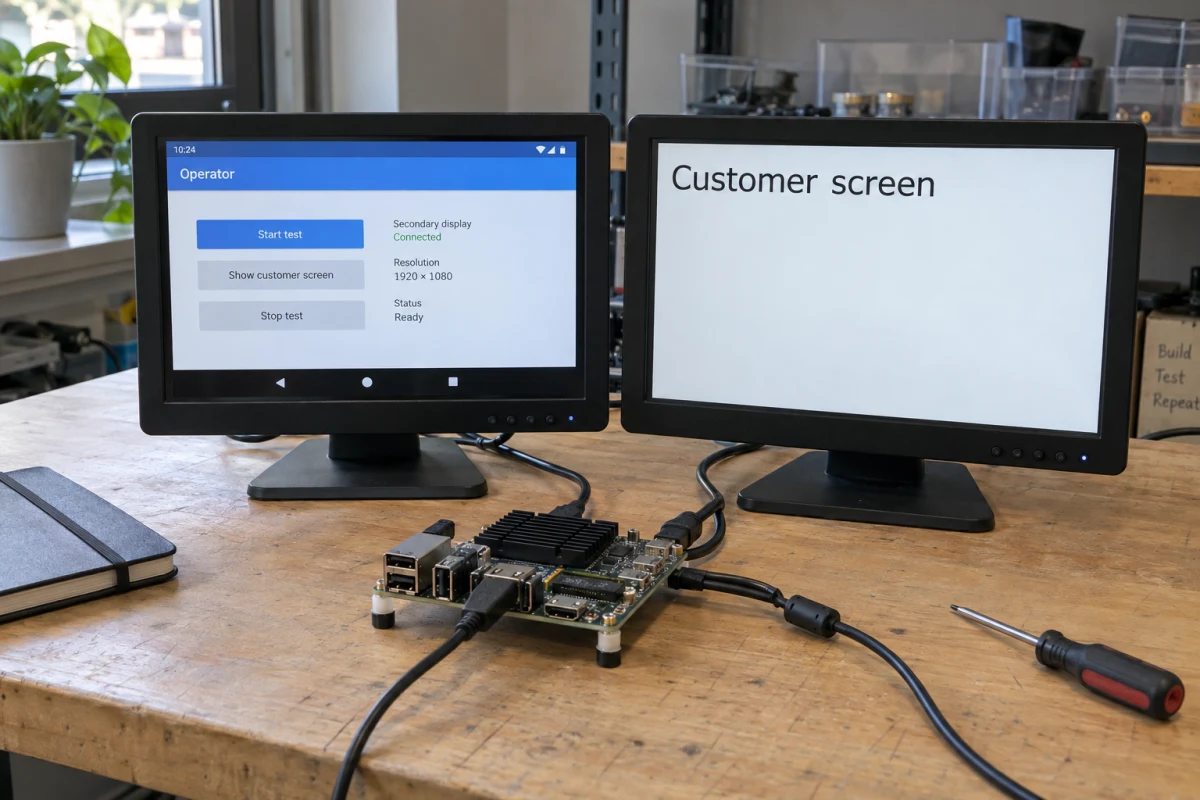
Consider an embedded terminal with controls on the operator screen and a status page facing customers. For an initial check, leave the operator interface open and put a “Customer screen” label on the other panel. Confirm where the label appears before adding live data or video.
Check How Android Recognizes Connected Displays
Keep the board model and firmware build with your test results. Rocktech’s PX30 and RK3576 motherboards support dual independent display, but the selected board and firmware determine how the outputs become available to Android. Record the board model, firmware build, Android version, and connected panels with your test results. Rocktech’s PX30 and RK3576 motherboards support dual independent display, but the selected board and firmware determine how the outputs become available to Android. Our dual independent display guide covers the hardware selection questions behind this setup.
Use DisplayManager.getDisplays() to inspect the displays visible to the application. Then query DISPLAY_CATEGORY_PRESENTATION to find candidates suitable for Presentation. If the second screen appears in getDisplays() but not in the presentation category, check how the firmware classifies it. Changing the customer layout will not make that screen an eligible Presentation target.
For Android multi display development, identify which returned display corresponds to the physical customer screen. A display’s position in the returned list does not describe its job in the terminal. During Android multi display development, show a temporary label on the selected output and record which physical screen receives it.
Also distinguish physical mounting from Android’s classification. A panel mounted inside an enclosure is not necessarily reported as an internal display by its firmware. Eligibility depends on the Android release and how the system exposes that output; the connector type alone does not settle it.
Choose Between Presentation and a Separate Activity
If the customer screen only shows a status page controlled by the operator app, start by evaluating Presentation. If it needs its own navigation flow, evaluate a separate Activity and its task behavior. A dedicated status view can remain part of the operator application. A screen with its own navigation may justify a separate Activity, bringing additional lifecycle and task behavior to manage.
| Approach | Suitable starting point | What to verify |
|---|---|---|
| Presentation | One application providing controls and a dedicated secondary view | Eligible target display and correct resource context |
| Separate Activity | A secondary interface needing its own navigation and lifecycle | Platform support, launch permission, task placement, and focus |
Start with a Small Presentation
Presentation is a display-specific dialog available from API level 17. Build its views with its own context so that resources follow the target display’s configuration. For an Android dual display prototype, a plain label is enough to verify output selection.
This Kotlin method belongs inside an Activity and runs on the UI thread. It requires exactly one eligible presentation display and returns null when there are none or several. Put the imports at file level. The example checks display placement; lifecycle management must be added by the application.
import android.app.Presentation
import android.content.Context
import android.hardware.display.DisplayManager
import android.view.WindowManager
import android.widget.TextView

fun showSecondaryLabel(): Presentation? {
    val manager = getSystemService(Context.DISPLAY_SERVICE) as DisplayManager
    val target = manager.getDisplays(
        DisplayManager.DISPLAY_CATEGORY_PRESENTATION
    ).singleOrNull() ?: return null
    val presentation = Presentation(this, target)
    presentation.setContentView(TextView(presentation.context).apply {
        text = "Customer screen"
        textSize = 32f
    })
    return try {
        presentation.show()
        presentation
    } catch (error: WindowManager.InvalidDisplayException) {
        null
    }
}
Keep the returned instance and dismiss it when the owning screen stops using it. Avoid calling the method repeatedly without clearing the previous instance. Log a failed attempt: the target can disappear between discovery and show(). Replace the label with the customer layout only after confirming the physical screen.
Use an Activity When the Second Interface Needs It
Android 8.0, API level 26, introduced ActivityOptions.setLaunchDisplayId(). Pass the selected display identifier through these options when calling startActivity(). Check FEATURE_ACTIVITIES_ON_SECONDARY_DISPLAYS first; without that feature, the launch display option is ignored.
On Android 10 and later, isActivityStartAllowedOnDisplay() can check whether a proposed launch passes display access restrictions. Handle launch failures even after this check: the selected display may become unavailable before the Activity starts. Manifest launch modes, intent flags, and existing tasks can influence whether Android creates an Activity instance or reuses one.
In an Android multi display application, test repeated navigation as well as the first launch. Verify the actual destination after opening the secondary interface again. In an Android multi display application, open the secondary Activity, return to the operator screen, and open it again. Check where it appears on the second launch, when an existing instance may be reused.
Handle Display Changes and Application Restarts
Register a DisplayManager.DisplayListener for display additions, removals, and changes. On addition, reevaluate the intended target before creating its view. On removal, clear references and release associated resources. Presentation is canceled automatically when its display disappears, but application subscriptions and media resources still need appropriate cleanup.
When display properties change, recheck the target configuration and update or recreate the affected view as needed. Pair listener registration with unregistration in the owning component’s lifecycle so that obsolete components stop receiving callbacks.
Give the recreated customer view current data. For example, after a disconnected status screen returns, it should show the current service status immediately; waiting for the next change event can leave it blank or outdated. A process restart additionally requires restoring data from the application’s authoritative source.
Validate Android multi display recovery with separate checks:
- Application restart: Confirm that each view returns to its assigned screen.
- Display availability: Start without an eligible secondary display, then make one available through a supported method.
- Configuration change: Check layout and readable text after changing supported display settings.
- Active workload: Operate the main interface while the secondary view updates.
Disconnect hardware during operation only where the interface supports it. Internal panel connections may require shutdown. Record display events alongside view creation and dismissal to distinguish an absent output from a rendering failure.
Frequently Asked Questions
Can an ordinary Android app enable an unsupported second output?
No. Application APIs can use displays exposed by the system; they cannot supply missing display hardware or board configuration. If Android does not expose the intended output, check the board’s supported interface combination and firmware with its supplier. Installing a different application does not establish hardware support.
Does placing an Activity on the second screen also route touch input?
No. Display placement and touch routing are separate concerns. Android 10 introduced a port-based association mechanism for matching touch devices to displays. Embedded firmware must provide the appropriate mapping. If a touch operates the wrong screen, investigate that association before changing the Activity layout, then test focus and concurrent interaction.
Can simulated displays replace testing on the motherboard?
Simulated displays supplement board testing. Android’s simulated secondary displays help developers exercise display selection and secondary layouts. They do not validate physical outputs, panel timing, touch wiring, or sustained performance on the target board. Use simulation during development, then repeat the relevant scenarios on the selected motherboard with its intended firmware and panels.
Before handing an Android multi display build to another developer, record the firmware version, selected display, and API path used by the app. For a Rocktech PX30 or RK3576 evaluation, include the restart and reconnection results so the next test can reproduce the same setup.