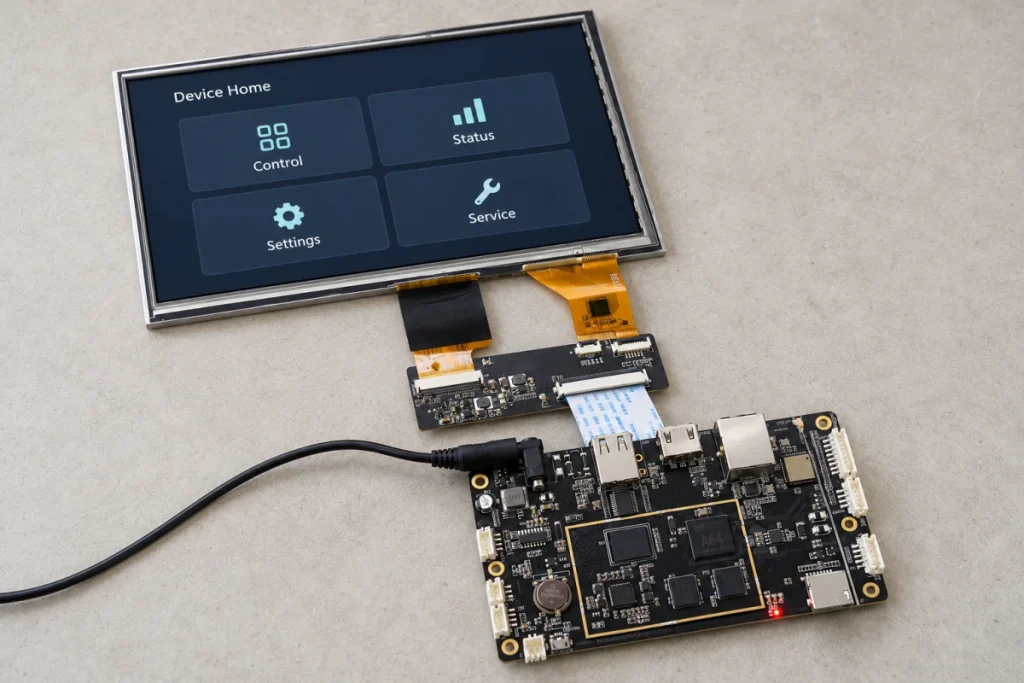
A custom Android launcher makes your Android APP to be the device’s Home screen. For an embedded product, the practical requirement is usually straightforward: open the customer’s interface when Android reaches Home, and return to it when someone presses the Home button. Your existing app can handle this role, but installing its APK does not automatically make it the default.
Suppose you are building an equipment control panel. The app already shows operating status and accepts commands, but an operator still has to open it from the Android desktop. Before changing the firmware, write down two expected behaviors: which screen should appear after startup, and where Home should take the operator during a task.
What Changes When Your App Becomes the Launcher?
A launcher is an Android application that provides the Home interface. It does not need wallpapers, widgets, or a grid of installed applications. A custom Android launcher can open directly onto the customer’s existing business interface.
An Android launcher for embedded devices can be part of the business app or a separate application. Keeping both in one package simplifies installation and updates. A separate launcher is worth considering when technicians need a service screen even if the business app cannot open. That benefit depends on the service screen working independently of the failing app.
Three requirements should remain distinct: starting an application, selecting the default Home application, and restricting access to other functions. Launcher configuration addresses the Home destination. Lock task mode and device policies address restrictions; replacing the desktop alone does not lock down the device.
Declare the Home Entry, Then Set the Default
For a native Android application, declare the intended Home activity in AndroidManifest.xml. The following minimal fragment belongs inside the application element; replace HomeActivity with your actual activity class:
<activity
    android:name=".HomeActivity"
    android:exported="true">
    <intent-filter>
        <action android:name="android.intent.action.MAIN" />
        <category android:name="android.intent.category.HOME" />
        <category android:name="android.intent.category.DEFAULT" />
    </intent-filter>
</activity>
This declares an eligible Home entry; it does not silently make the application the default. Also, the LAUNCHER category used for an ordinary application icon is different from HOME. Keep icon access in a separate intent filter if your development or maintenance workflow needs it.
If the development firmware exposes a Home selection setting, choose your application as the Android default home app. Press Home to check the destination, then restart the board and check again. Note any chooser or setup screen that interrupts the expected startup sequence; its presence needs to be resolved in the deployment configuration.
For managed deployments, a properly provisioned device policy controller can use DevicePolicyManager.addPersistentPreferredActivity() to set the preferred Home handler. A device owner is one authorized caller; an ordinary application cannot assume this authority simply because it was installed.
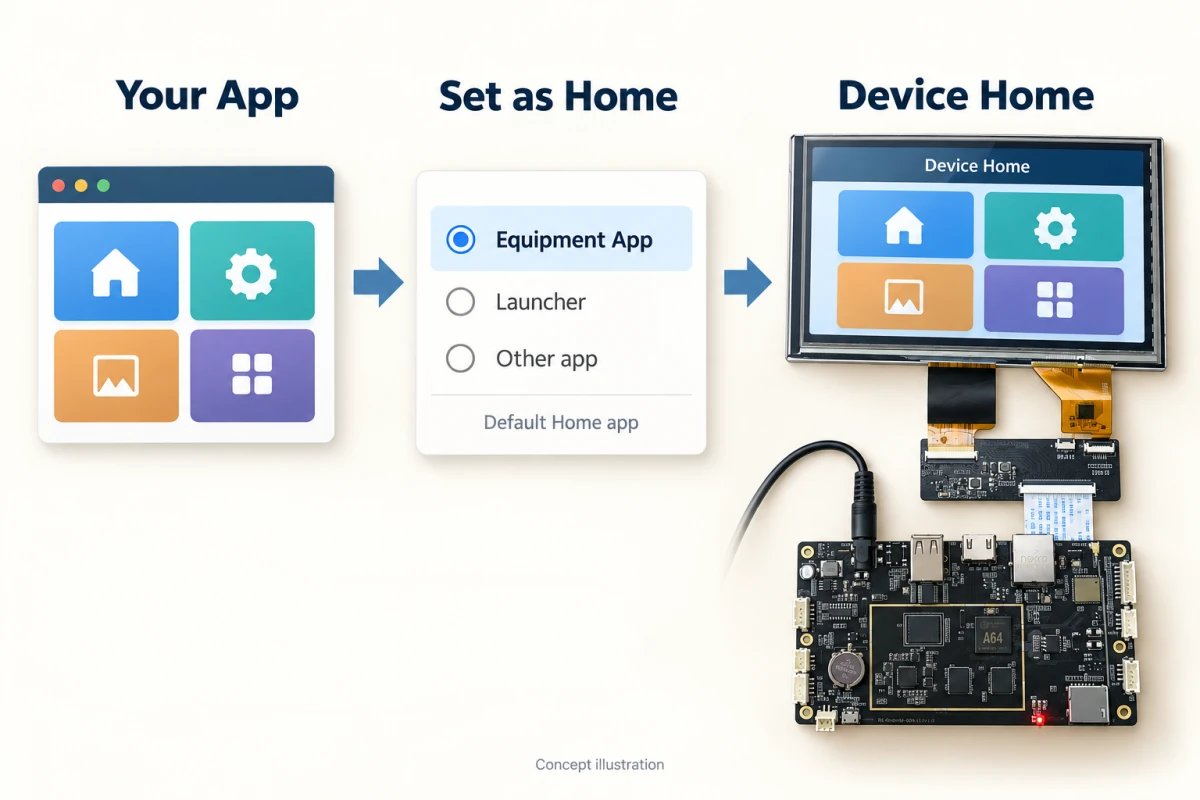
For a custom Android launcher shipped with an embedded board, agree on the production configuration with the firmware supplier. Preinstalling the package and selecting it as Home are separate requirements. Record the package name, activity component, Android build, and provisioning procedure so the next production batch receives the same configuration.
Build a Startup Screen That Can Wait
The Home screen may become available before the equipment is ready for normal operation. A network connection, USB peripheral, or board-specific service can take longer to initialize. Design the interface to show which dependency is missing and disable only the actions that require it.
In the control-panel example, the screen could show “Controller disconnected” and keep settings accessible while disabling commands that require the connection. Decide how long the app should wait before reporting a fault and whether reconnection is automatic or operator-initiated. A technician should be able to distinguish a missing controller from a frozen application without guessing from a spinning icon.
If a custom Android launcher crashes before its settings screen opens, an in-app maintenance button cannot help. Plan how a technician will retrieve logs and install a working version when that happens. Any recovery method that depends on the same failing startup code needs another route, such as an independently accessible service interface provided by the deployment design.
If operation before the first unlock is required, review Android Direct Boot support and storage access separately. Credential-encrypted application data is unavailable until the user unlocks the device. Making an activity the default Home app does not remove that constraint.
Check the Deployment on the Actual Board
Use the production display, touch interface, peripherals, and firmware when validating a custom Android launcher. Check touch targets at the intended display density and orientation, including dialogs and maintenance screens. The following checks are suggested acceptance criteria, to be adjusted for your device.
| Test | What to verify | Why it matters |
|---|---|---|
| Cold boot and restart | The intended interface appears without a Home selection prompt. | Reveals a Home assignment that was not applied to the production image or provisioned device. |
| Home and Back navigation | Home returns correctly; Back follows the defined application workflow. | Exposes unintended exits and confusing navigation. |
| Missing network or peripheral | The screen stays responsive and identifies unavailable functions. | Prevents startup dependencies from blocking the whole interface. |
| Application update | Home assignment, saved configuration, and data migration work. | Reveals broken Home component references or incompatible saved data after an update. |
| Repeated application failure | An authorized technician can retrieve logs and restore service. | Reveals whether maintenance access depends on the application that has failed. |
Include fresh installations and upgrades from the previously deployed version. Preserve package identity and plan signing-key continuity: Android checks signing compatibility when accepting application updates. Renaming the Home activity also deserves attention because deployment settings may reference the old component.
Coordinate the Application and Board Requirements
Plan Android launcher development with the board supplier by sharing a short behavior specification alongside the application package. Include the Android version, Home activity, display orientation, required peripherals, startup dependencies, update method, and maintenance access. Assign responsibility for each item between the application developer and firmware team.
Rocktech’s Android embedded board services include Board Support Package (BSP) development, display and touch driver integration, Android Framework and Hardware Abstraction Layer (HAL) customization, and application auto-start support. Discuss the specific Home configuration and recovery requirements for your project rather than assuming every board image already includes them.
Frequently Asked Questions
Does making an app the default Home app require root?
No. Where the Android build permits it, users can select a compatible Home application through system settings without root access. Automated assignment uses an authorized management or firmware configuration path. Root access and device-owner authority are different concepts; installing an ordinary application provides neither automatically.
Can the device launch the app at boot without replacing Home?
Yes, boot-time launch can be a separate requirement, but the implementation depends on the Android version and deployment environment. Background activity-start restrictions make a boot receiver an unreliable universal recipe. Auto-start alone also leaves the Home destination unchanged, so specify both behaviors if the product needs them.
Will a Home application still run without internet access?
Yes, a locally installed Home application can display its interface without internet access. Its useful offline behavior depends on application design: authentication, content, licensing, or business operations may still require a server. Define which local functions remain available and how pending operations are handled when connectivity returns.
If your app already runs on a development board, the next step is to check it with the firmware and peripherals intended for production. For a custom Android launcher project, send Rocktech the Android version, app package and Home activity names, display model, and required startup behavior. Identify which functions already work and which still need board or firmware integration.